 Install on Shopify
Shop Metafield Conditions
Drive minimums, maximums and pack sizes from data you already keep elsewhere.
Short answer
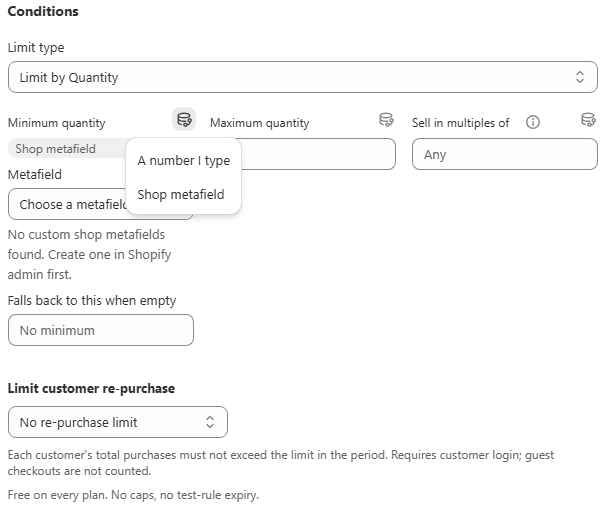
Shop Metafield Conditions let a rule read its minimum, maximum or sell-in-multiples value from a Shopify shop metafield instead of a fixed number. This is the bridge between Prime MOQ and every external system that writes campaign data into your store. ERPs, PIMs, spreadsheets, custom apps or warehouse systems can push values into a shop metafield, and Prime MOQ enforces those values at the product page, in the cart and at checkout without you retyping them.
- Minimum, maximum and sell-in-multiples fields can each pull from a shop metafield.
- The metafield must be a number type at the shop level and already exist in Shopify admin.
- If the metafield is empty, the rule falls back to a fixed value or to No minimum / No maximum / Any.
- One external data push updates every rule that reads that metafield, so campaign changes go live instantly.
- Works for quantity, value and weight limit types, giving one data source for every limit dimension.
Inside the app
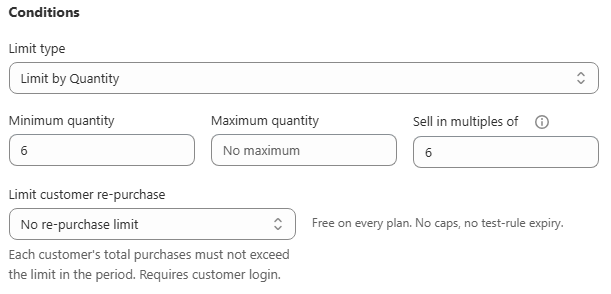
Real screens from Prime MOQ · Order Limits.
What you get
ERP-driven minimums
Your ERP writes the current minimum order quantity into a shop metafield and Prime MOQ enforces it across the store the same minute.
Campaign bulk updates
Run a promotion that changes pack sizes or maximums for hundreds of products by updating one metafield value.
Safe fallback
When the external system clears the metafield or sends nothing, the rule falls back to a sensible default instead of blocking all orders.
No manual retyping
Eliminate the copy-paste errors that happen when campaign spreadsheets have to be entered into every rule by hand.
How it works
- 1Create a number-type shop metafield in Shopify admin, for example campaign.min_qty or wholesale.pack_size.
- 2Have your ERP, PIM, warehouse system or scheduled workflow write the live value into that metafield.
- 3Open the rule editor in Prime MOQ, choose Limit by Quantity, Value or Weight, then set the source to Shop metafield.
- 4Select the metafield you created and choose the fallback behavior if the value is empty.
- 5Save the rule. The product page, cart and checkout now use the live metafield value.
Why shop-level metafields
A shop metafield belongs to the store, not to a product or variant, so it is the right place for one campaign value that governs many items. Product metafields are useful for per-SKU data, but shop metafields are the cleanest way to broadcast one number to every rule that needs it.
Supported limit fields
Each limit type exposes the fields that make sense for that dimension. You can mix metafield sources and fixed values inside the same rule.
| Limit type | Fields that can use a shop metafield |
|---|---|
| Quantity | Minimum quantity, Maximum quantity, Sell in multiples of |
| Value | Minimum order value, Maximum order value |
| Weight | Minimum total weight, Maximum total weight |
External systems that can feed the metafield
Anything that can write a Shopify shop metafield becomes the source of truth for your limits. Common examples include ERP integrations, PIM feeds, scheduled workflows, Shopify Flow, custom private apps, or warehouse systems that know current stock and allocation rules.
Fallback behavior
A missing metafield value does not block checkout by default. You choose what happens when the value is empty: fall back to a fixed number you enter, or treat it as no minimum, no maximum or any pack size. This keeps the store safe when an external feed is delayed.
Common mistakes
- Creating a product or variant metafield when the value is meant to be store-wide. Shop metafields are the correct scope for campaign-level numbers.
- Forgetting to set a fallback. An empty metafield with no fallback can leave customers unable to add anything to the cart.
- Using a non-number metafield type. The condition editor expects a number, so text or JSON metafields will not appear as options.
- Updating the metafield but not checking that the rule is active and matches the intended products.
- Relying on metafields for per-variant values. Variant-level limits still need product or variant metafields, depending on your plan.
Frequently asked questions
- Where do I create the shop metafield?
- In Shopify admin, go to Settings > Custom data > Shop metafields. Create a definition with the Number type and the namespace and key you will use, such as campaign.min_qty.
- Can my ERP write the value automatically?
- Yes. Any system with permission to call the Shopify Admin API can update a shop metafield. Prime MOQ reads the latest value every time the rule is evaluated.
- What happens if the metafield is empty?
- The rule uses the fallback you configured: a fixed number, or no minimum, no maximum, or any pack size. You set this in the Falls back to this when empty field.
- Can I use one metafield for quantity and another for value in the same rule?
- Yes. Each field is independent, so you can source minimum quantity from one metafield and maximum value from another, or leave some fields fixed.
- Is this available on the free plan?
- Yes. Shop metafield conditions are part of the core free feature set, with no cap on how many rules read from metafields.
Best for
Stores running campaigns from an ERP or PIM, merchants who bulk-update limits, and anyone who wants external data to drive minimums, maximums or pack sizes.
Want a walkthrough of this rule?
We'll set it up live on your catalog in 30 minutes.