 Install on Shopify
Blocked Order Alerts
An email the moment a large order is stopped, and a digest for everything else.
Short answer
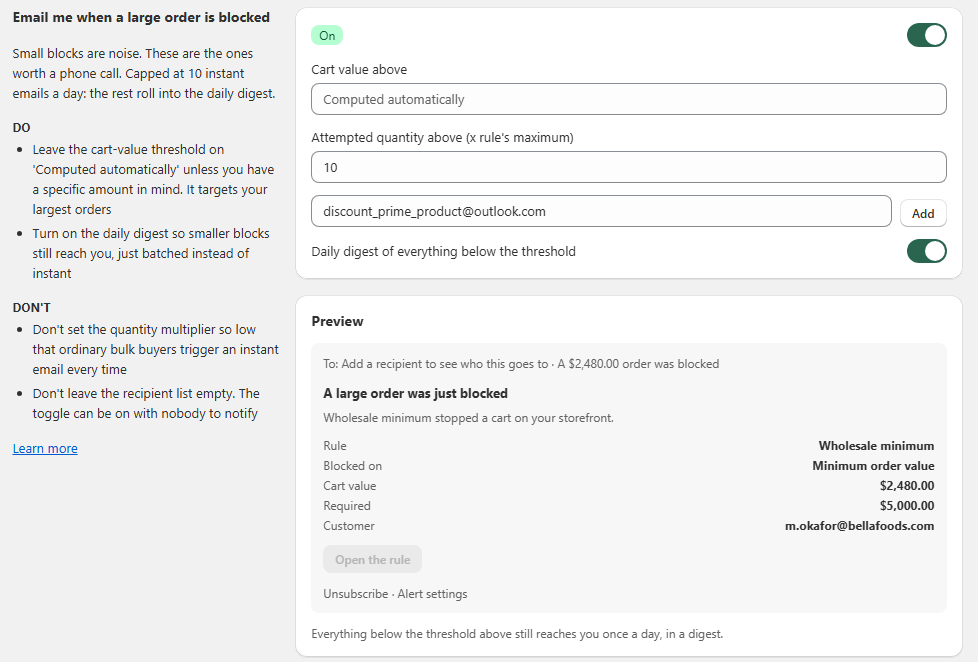
Blocked order alerts tell you when a rule stopped a cart that was worth a phone call. You open Settings in Prime MOQ, switch on Email me when a large order is blocked, add the people who should hear about it, and choose the thresholds that separate a large block from noise. Anything above the threshold arrives as an instant email with the rule, the cart value, the required amount and the customer. Everything below it still reaches you once a day in a digest, so nothing is lost and your inbox is not flooded.
- Lives in Settings. Open Settings in the Prime MOQ admin to reach the alert controls.
- Two thresholds: cart value above, and attempted quantity above the rule's maximum.
- Leave the cart-value threshold on Computed automatically and it targets your largest orders for you.
- Instant emails are capped at 10 a day. The rest roll into the daily digest.
- The daily digest can stay on independently, so smaller blocks still reach you, just batched.
- Each email names the rule, what it blocked on, the cart value, the required value and the customer, with a link straight to the rule.
Inside the app
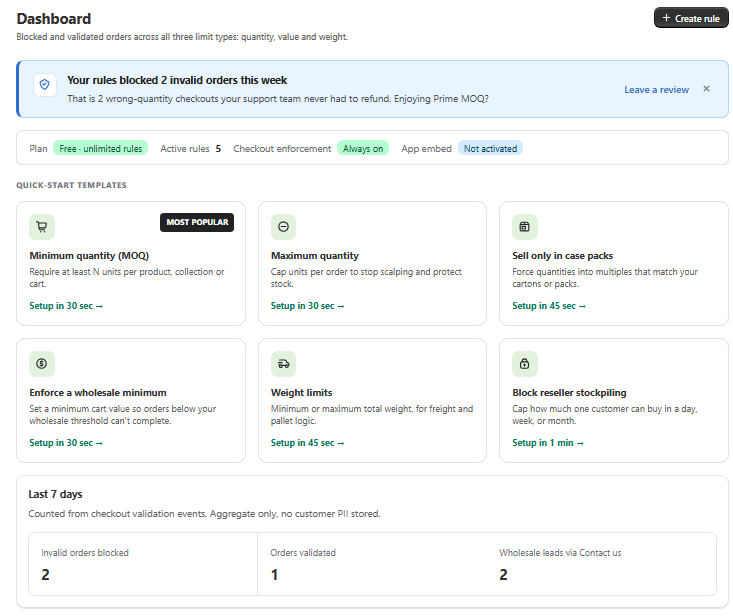
Real screens from Prime MOQ · Order Limits.
What you get
Only the orders worth a call
Small blocks are noise. The thresholds let through the ones where a real buyer was a few hundred dollars short of your minimum.
Computed automatically
If you have no specific amount in mind, leave the cart-value threshold empty. The app works out what large means for your store and follows it as your orders change.
Nothing gets lost
Everything under the threshold is collected and sent once a day in a digest, so you still see the full picture without an inbox full of single alerts.
Full context in the email
Rule, blocked on, cart value, required, customer email and an Open the rule button. You can act without opening the admin first.
How it works
- 1Open Settings in the Prime MOQ admin. The alert card sits there, off by default.
- 2Turn on Email me when a large order is blocked.
- 3Leave Cart value above on Computed automatically, or type the amount that counts as large for your store.
- 4Set Attempted quantity above, expressed as a multiple of the rule's maximum, for example 10 times the maximum.
- 5Add one or more recipient email addresses and press Add for each.
- 6Keep Daily digest of everything below the threshold on so smaller blocks still reach you in one batch.
- 7Use the Preview under the form to see exactly what the email will look like before anyone else does.
What each setting does
Four controls decide who hears about a block and how loudly.
| Setting | What it controls |
|---|---|
| Cart value above | The money threshold for an instant email. Left on Computed automatically, the app targets your largest orders. |
| Attempted quantity above | A multiple of the rule's maximum. At 10, a shopper trying ten times the allowed quantity triggers an instant email. |
| Recipients | Everyone who receives the instant emails and the digest. The toggle can be on with nobody listed, so check this list. |
| Daily digest | Batches every block under the threshold into one email a day, sent to the same recipients. |
What an alert email contains
The email is written to be read on a phone in five seconds and acted on immediately.
- Subject line naming that a large order was just blocked, with the cart value.
- The rule that stopped it, for example Wholesale minimum.
- What it blocked on, for example Minimum order value.
- Cart value against the required value, so you see how close the shopper was.
- The customer's email when the shopper is known.
- An Open the rule button that takes you straight to that rule in the admin.
Instant versus digest
Instant emails are capped at 10 a day on purpose. Once that cap is reached, further blocks are not dropped, they roll into the daily digest along with everything under your thresholds. The digest is the safety net: it keeps the instant channel meaningful while still giving you the full list once a day.
Choosing thresholds that work
The right threshold depends on what a normal order looks like in your store.
- If your minimum order value is 5,000 dollars, a 2,480 dollar block is a real wholesale buyer, worth an instant email.
- A 40 dollar cart against the same minimum is a retail shopper on the wrong storefront. Let the digest carry it.
- Set the quantity multiplier high enough that ordinary bulk buyers do not trigger an instant email every time.
- Start with Computed automatically for a week, read the digests, then tighten if you want fewer emails.
Common mistakes
- Setting the cart-value threshold so low that every retail shopper generates an instant email.
- Setting the quantity multiplier too low, so ordinary bulk buyers trigger an alert every time.
- Leaving the recipient list empty. The toggle can be on with nobody to notify.
- Turning the daily digest off, then wondering why smaller near-miss carts never reached you.
- Treating a missing alert as a missing block. Enforcement always happens, alerts are only the notification.
Frequently asked questions
- Where do I turn blocked order alerts on?
- In Settings inside the Prime MOQ admin. The card is called Email me when a large order is blocked, and it is off until you switch it on.
- What does Computed automatically mean?
- You do not set an amount. The app works out what counts as a large cart for your store and targets your largest blocked orders, adjusting as your order sizes change.
- How many emails will I get?
- At most 10 instant emails a day, plus one digest containing everything else.
- Can several people receive the alerts?
- Yes. Add as many recipients as you need, and they all receive both the instant emails and the digest.
- Does an alert change what the shopper sees?
- No. The shopper sees the rule's storefront message as usual. Alerts are for your team only.
- Can I see the email before anyone receives it?
- Yes. The Preview under the form renders the exact email, including the rule, the cart value and the required value.
Best for
Merchants who would rather call a buyer who was a few hundred dollars short than read about it in a report next month.
Want a walkthrough of this rule?
We'll set it up live on your catalog in 30 minutes.