 Install on Shopify
Targeting Products & Collections
Rules that follow your merchandising, not a manual list.
Short answer
The Products card decides which items in your catalogue a rule applies to. Every rule takes exactly one scope selection: specific products, collections, product tags, vendors, product types, all store, or the plan-gated price range and variant metafield options. An optional exclusion list can be layered on top, and an on-the-fly toggle keeps the rule matching products you add later.
- One scope per rule, with an optional exclusion scope layered over it.
- The on-the-fly toggle keeps the rule matching products you add to your catalogue later.
- Calculate items count shows exactly what matches before you save.
- A rule matching zero products is saved but never enforced, and shows as Deactivated.
Inside the app
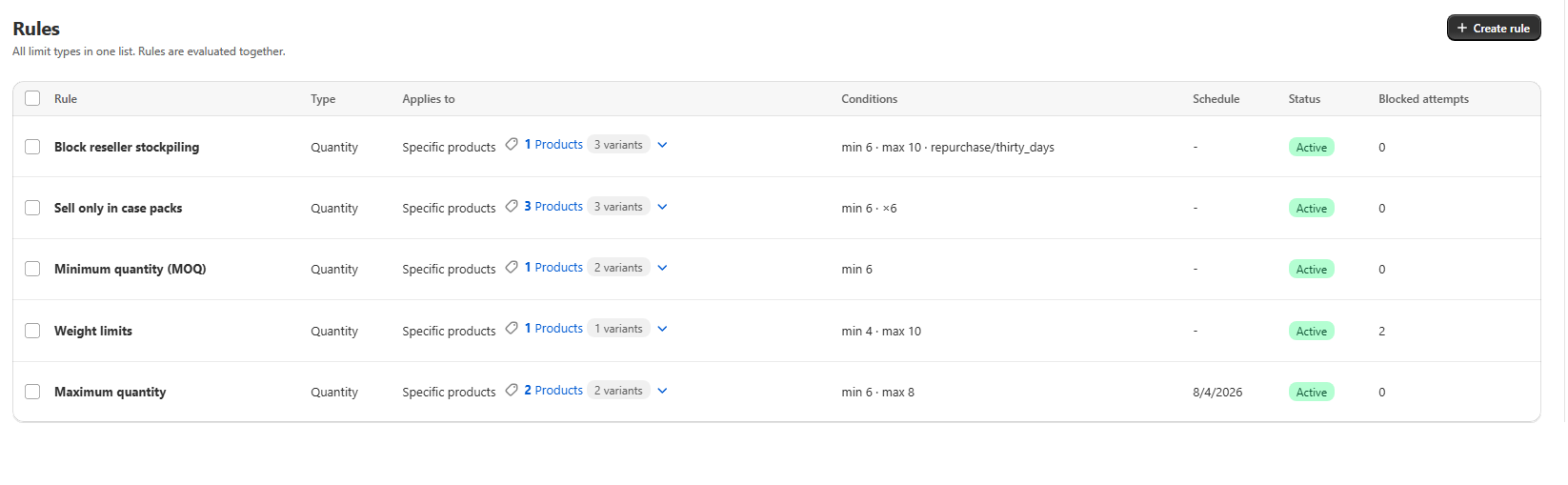
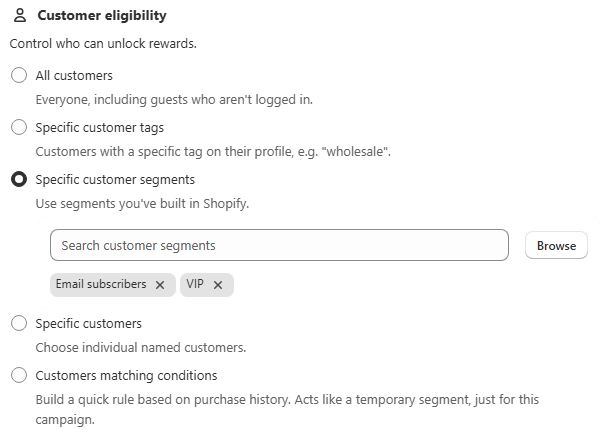
Real screens from Prime MOQ · Order Limits.
What you get
Merchandising-shaped scopes
Pick the option that matches how you already think about products: collection, tag, vendor or product type.
Exclusions
Layer an exclusion list over a broad scope instead of hand-listing hundreds of included products.
Auto-update
With on-the-fly enabled, a product added to a targeted collection picks up the rule instantly.
Check before you save
Calculate items count tells you the exact match count, so a typo never ships as a silent no-op.
How it works
- 1Open the Products card and pick the scope type that matches how the rule should think about products.
- 2Choose the products, collections, tags, vendors or types with the resource picker.
- 3Add an exclusion scope for the handful of items that must not be covered.
- 4Turn on the on-the-fly toggle so future products are matched automatically.
- 5Run Calculate items count and confirm the number looks right before saving.
Every scope option
Every rule needs exactly one scope selection, with an optional exclusion list layered on top.
| Option | Matches |
|---|---|
| Specific products | One or more products you pick individually |
| Collections | All products in one or more collections |
| Product tags | All products carrying one or more tags |
| Vendors | All products from one or more vendors |
| Product types | All products of one or more product types |
| All store | Every product in the catalogue |
| Price range or variant metafield | Plan-gated advanced matching |
Common mistakes
- Saving a scope that matches zero products, which shows as Deactivated and never enforces.
- Hand-listing products where a collection or tag would keep itself up to date.
- Overlapping scopes across two active rules, when only one rule can govern a product.
Frequently asked questions
- Will new products get the rule automatically?
- Yes, if you enable the on-the-fly toggle and target a collection, tag, vendor or type rather than individual products.
- Can one rule use two scope types at once?
- No. Each rule takes one scope selection, plus an optional exclusion list on top of it.
Best for
Large or fast-changing catalogues.
Want a walkthrough of this rule?
We'll set it up live on your catalog in 30 minutes.