 Install on Shopify
Scheduled Rules & Statuses
Turn limits on and off without touching the store at 3am.
Short answer
By default a rule activates the moment you save it and runs indefinitely. The Schedule card sets a future start date, an end date, or both. Until the start date arrives the rule shows as Scheduled rather than Active, and once the end date passes it shows as Expired and stops enforcing on its own. Times use your store's configured timezone, not your browser's.
- A rule with a future start date shows as Scheduled, not Active, until that time.
- An expired rule is not deleted. It stays in the list so it can be extended or reactivated.
- The badge shows the effective status, not just the status you saved.
- A rule matching zero products shows as Deactivated whatever you saved.
Inside the app
Real screens from Prime MOQ · Order Limits.
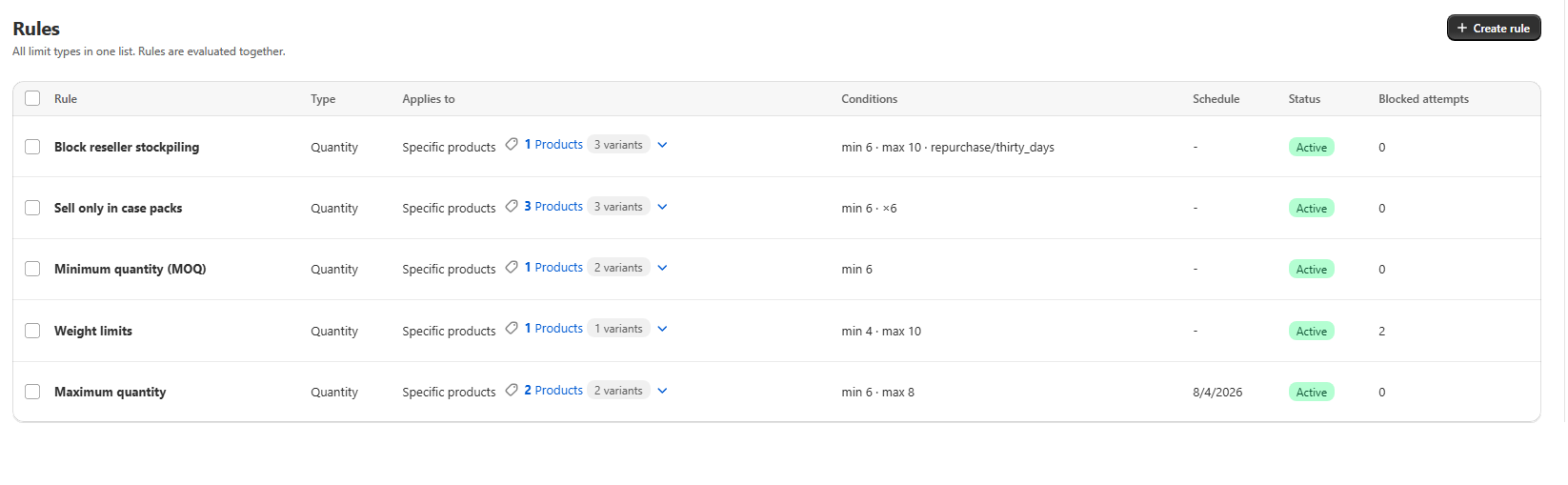
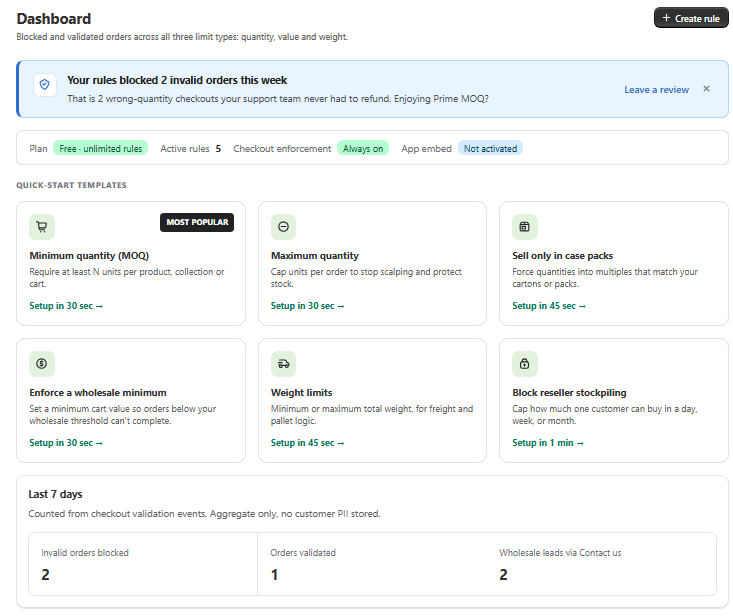
What you get
Start dates
Begin a limit at a future date and time, useful when a wholesale minimum kicks in after a trial period.
End dates
The reliable way to remove a drop cap without having to remember to do it by hand.
Windows
Set both dates to run a seasonal weight cap or a launch limit only during its window.
Honest status badges
Active, Scheduled, Expired and Deactivated tell you what is really enforcing right now.
How it works
- 1Open the Schedule card in the rule editor and toggle it on.
- 2Pick the date and time the rule should begin enforcing, in your store's timezone.
- 3Optionally check Set end date and pick when it should stop.
- 4Save. Until the start date arrives the rule shows as Scheduled in the Rules list.
- 5After the window closes the rule shows as Expired and can be extended or reactivated later.
The four statuses
The badge in the Rules list reflects whether a rule is actually enforcing right now, computed from the saved status, the schedule, and whether the rule matches any products.
| Badge | Meaning |
|---|---|
| Active | Enforcing at checkout right now |
| Scheduled | Set to Active, but the start date has not arrived |
| Expired | Set to Active, but the end date has passed |
| Deactivated | Manually deactivated, or matching zero products |
Common mistakes
- Reading Calculating as a status. It is a short loading state that resolves on its own.
- Looking for Activate and Deactivate in the Status card. They live in the page header, and the card is read-only.
- Assuming a browser timezone. Schedules follow the store's configured timezone.
Frequently asked questions
- Does an expired rule get deleted?
- No. It stays in the list so you can extend the window or reactivate it later.
- Why does my Active rule show as Deactivated?
- Most often because its scope currently matches zero products. A zero-match rule is never enforced.
Best for
Launches, seasonal packs and pre-order windows.
Want a walkthrough of this rule?
We'll set it up live on your catalog in 30 minutes.