 Install on Shopify
Coverage & Rule Overrides
See exactly which products each rule really governs, and which ones another rule took over.
Short answer
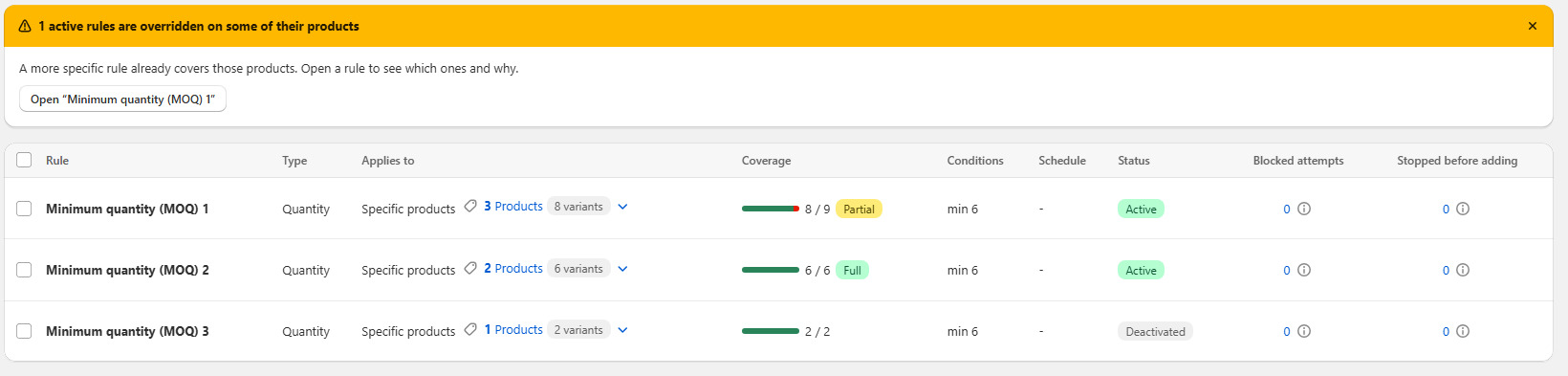
Coverage management is how Prime MOQ shows you the truth behind every rule: not what the rule was scoped to, but what it actually governs right now. Each rule in the list carries a coverage bar such as 8 / 9 with a Full or Partial badge, meaning how many of the products it targets are genuinely enforced by it. When a product is targeted by two rules, the more specific rule wins and the broader one is marked as overridden on that product. A banner at the top of the rules list tells you how many active rules are affected and links straight to the rule to inspect it.
- Coverage shows enforced products out of targeted products, live, per rule.
- Full means every targeted product is governed by this rule. Partial means something else took part of it.
- The more specific rule always wins on the overlapping products. Nothing is silently lost.
- The warning banner names the affected rule and opens it so you can see which products and why.
- Deactivated rules keep their coverage numbers but are not enforced and never override anything.
Inside the app
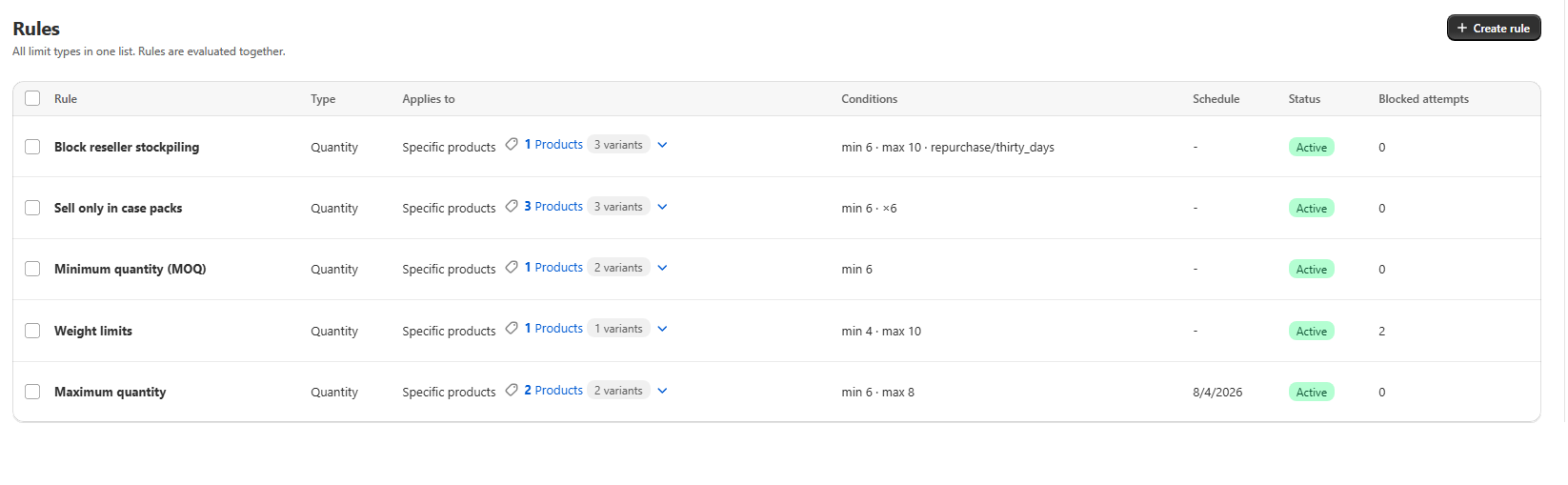
Real screens from Prime MOQ · Order Limits.
What you get
Coverage bar per rule
A green bar plus a count like 6 / 6 or 8 / 9 tells you at a glance whether a rule is doing the whole job you scoped it for.
Automatic override detection
Prime MOQ compares the scopes of your active rules and flags every product where a narrower rule takes precedence.
Per-product explanation
Open the flagged rule and you see the exact products that were taken over and the rule that took them.
No priority puzzle
You never rank rules by hand. Specificity decides, and the coverage view makes that decision visible.
How it works
- 1Save a rule with any scope: specific products, a collection, a tag, a vendor or the whole store.
- 2Prime MOQ resolves the scope into a concrete product and variant list and shows it as Applies to, for example 3 Products, 8 variants.
- 3It then compares that list against every other active rule and decides, product by product, which rule is the most specific one.
- 4The coverage bar is drawn from the result: enforced products over targeted products, with a Full or Partial badge.
- 5If any active rule lost products to a narrower rule, the overridden banner appears above the list with a button to open that rule.
- 6Fix or accept it: narrow the broad rule's scope, deactivate the duplicate, or leave the override in place if it is what you intended.
Reading the coverage column
Coverage answers one question: of the products this rule targets, how many does it actually enforce today?
| What you see | What it means |
|---|---|
| 6 / 6 with a Full badge | Every targeted product is governed by this rule. Nothing overlaps it. |
| 8 / 9 with a Partial badge | One targeted product is governed by a more specific rule instead. The other eight are enforced here. |
| 0 / 0 | The scope currently resolves to no products, so the rule is never enforced whatever its status says. |
| Coverage on a Deactivated rule | Numbers still show for planning, but nothing is enforced and this rule cannot override another. |
How the winner is chosen
A product can only be governed by one active rule, so Prime MOQ picks the most specific match rather than asking you for a priority order. Narrower beats broader on the products where the two overlap, and the broader rule keeps full control everywhere else.
- A rule scoped to specific products beats a collection rule on those products.
- A collection, tag, vendor or product-type rule beats a store-wide rule inside its scope.
- Customer eligibility narrows who a rule applies to, so a tag-scoped rule can coexist with a general one for other shoppers.
- Only active rules take part. Deactivated, archived and scheduled-but-not-yet-live rules are ignored.
The overridden banner
When at least one active rule loses products to a narrower rule, a yellow banner appears at the top of the rules list: 1 active rules are overridden on some of their products. It explains that a more specific rule already covers those products, and gives you a direct Open button for the affected rule so you can see exactly which products and why. It is information, not an error. Dismiss it once you have confirmed the outcome is what you wanted.
When an override is the right answer
Overlap is often deliberate. A store-wide minimum of 6 with a special minimum of 24 on your bulk collection is a healthy pattern: the broad rule shows Partial coverage, the bulk rule shows Full, and the result is precisely what you intended.
- General baseline plus a tighter exception for one collection or vendor.
- A seasonal rule temporarily taking over a handful of products from an evergreen rule.
- A single problem SKU pulled out of a wide rule with its own product-specific limit.
When to fix it instead
Treat the banner as a prompt to look if you did not plan the overlap. Two rules with the same intent on the same products usually means an older rule was never cleaned up, and one of them is quietly doing nothing on part of its scope.
- Narrow the broad rule so it excludes the products the specific rule owns.
- Deactivate or delete the duplicate rule rather than leaving it Partial forever.
- Merge two near-identical rules into one and use Customer eligibility for the difference.
- Use Calculate items count before saving to preview the resolved product list of a new scope.
Common mistakes
- Reading Partial as an error. It is normal whenever you intentionally carve out an exception.
- Assuming a rule with 0 / 0 coverage still protects the store. An empty scope enforces nothing.
- Trying to force a broad rule to win by editing it repeatedly. Specificity decides, so change the scopes instead.
- Ignoring the banner and later wondering why one collection behaves differently from the rest of the catalogue.
- Forgetting that variants count too: a rule can cover a product while another rule owns some of its variants.
Frequently asked questions
- What exactly does Partial coverage mean?
- The rule targets more products than it currently enforces, because a more specific active rule governs the difference. The count shows enforced over targeted, so 8 / 9 means one product went elsewhere.
- Can I choose which rule wins?
- Not with a priority field. The more specific rule always wins, so you control the outcome by changing scopes: make the rule you want to win narrower, or remove those products from the other rule.
- Does an overridden product lose its limit?
- No. It is still limited, just by the other rule. Nothing becomes unrestricted because of an override.
- Do deactivated rules override anything?
- No. Only active rules participate in coverage resolution, so a deactivated rule neither enforces nor takes products away from another rule.
- Why is the banner still showing after I fixed a rule?
- Coverage recalculates when scopes change. Reload the rules list, and if the overlap is genuinely gone the banner disappears. You can also dismiss it once you have accepted the overlap.
Best for
Stores running many rules at once that need to see, in one glance, which rule truly governs each product.
Want a walkthrough of this rule?
We'll set it up live on your catalog in 30 minutes.