 Install on Shopify
Pack Multiples & Increments
Only allow quantities that match your real case sizes.
Short answer
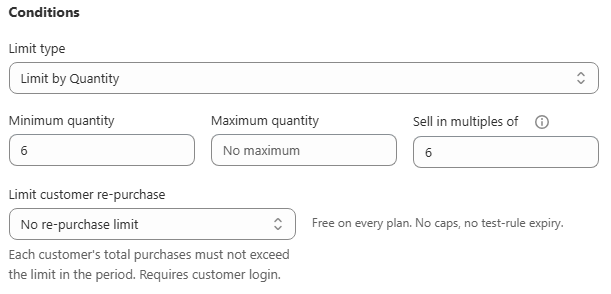
A case-pack rule requires the ordered quantity to be an exact multiple of a fixed number, so a carton of 6 allows 6, 12, 18 and 24 but blocks 5, 7 and 10. You set Limit type to Quantity and fill in Sell in multiples of, and it combines with Minimum quantity and Maximum quantity in the same rule. Minimum 6 plus multiple of 6 reads as "any whole number of cases, starting at one".
- Any quantity not evenly divisible by your case size is blocked.
- Multiples combine with a minimum and a maximum inside one rule, no second rule needed.
- Use Combined total if shoppers may mix SKUs to fill a case, Each item separately if every SKU needs its own full case.
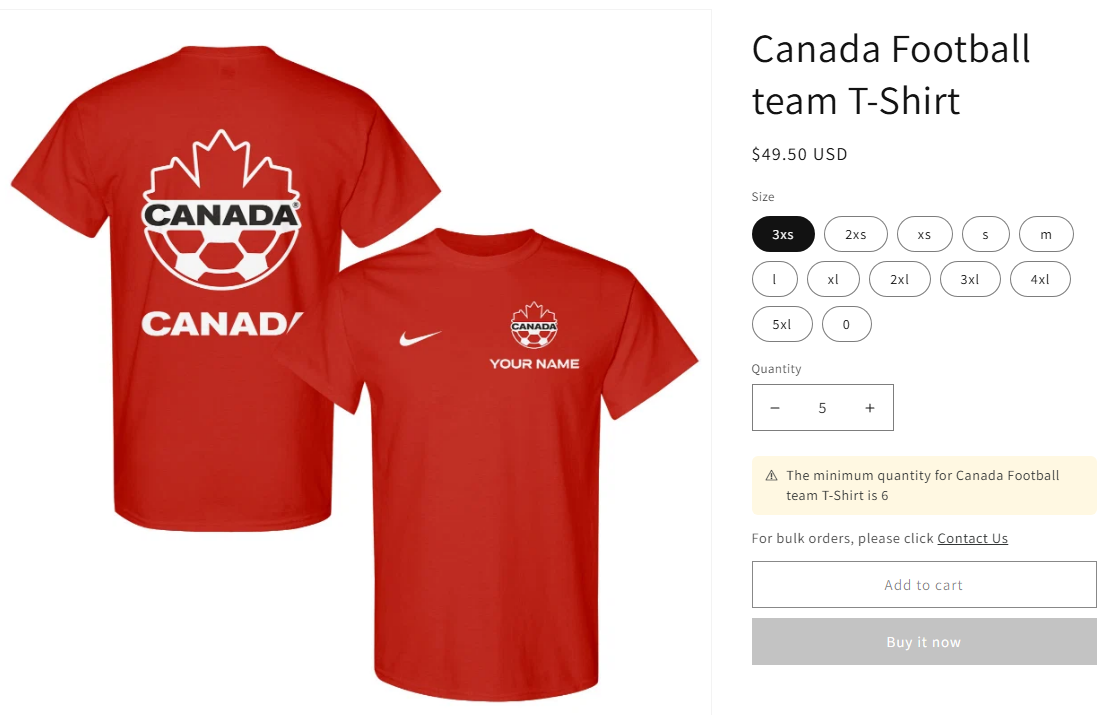
- Write a custom message naming the carton size. The generic default rarely explains a pack rule well enough.
Inside the app
Real screens from Prime MOQ · Order Limits.
What you get
Any increment
Steps of 2, 3, 6, 12, 24 or any custom number, applied per product, per collection or store wide.
Combines with min and max
A pack of 6 with a minimum of 12 and a cap of 60 behaves exactly as expected: 12, 18, 24 up to 60.
Matches how you pick and pack
Every order maps onto a real carton, so the warehouse never has to break a case or repack a partial.
Readable pack wording
Custom message text such as "sold in cartons of 6" tells shoppers the rule instead of just refusing them.
How it works
- 1Create the rule and set Limit type to Quantity.
- 2Enter your carton size in Sell in multiples of.
- 3Add Minimum quantity if a shopper must buy at least one full case, and Maximum quantity if you also want a ceiling.
- 4Pick the counting mode: Combined total for mix-and-match cases, Each item separately when every SKU ships in its own carton.
- 5Rewrite the limit message so it names the case size, then save.
What gets blocked
The check is pure divisibility. With a multiple of 6, quantities of 6, 12, 18 and 24 pass while 5, 7, 10 and 13 are rejected at checkout with your message. Nothing is silently rounded, so the shopper always knows what changed and why.
| Setup | Behaviour |
|---|---|
| Multiple of 6 | 6, 12, 18, 24 allowed. 5, 7, 10 blocked |
| Multiple of 6 plus minimum 12 | Whole cases only, starting at two cases |
| Multiple of 12 with maximum 60 | 12, 24, 36, 48, 60 allowed, nothing above |
Counting mode matters most here
Combined total lets a buyer reach a full case by mixing flavours or sizes from the same collection, which suits mixed cartons. Each item separately means every SKU in the cart must be ordered in whole cases of its own, which suits sealed manufacturer packs.
Common mistakes
- Leaving the default message in place, so shoppers see a generic warning that never mentions the carton size.
- Choosing Each item separately when your cartons are mix-and-match, which makes small orders impossible.
- Setting a minimum that is not itself a multiple of the case size, which confuses the first valid quantity.
Frequently asked questions
- Can I combine a multiple with a minimum and maximum?
- Yes, all three fields live in the same Conditions card of one rule and are enforced together.
- Does the storefront round the quantity for the shopper?
- The storefront message tells them the quantity is invalid and the checkout Function blocks it. Nothing is changed behind their back.
Best for
Case-pack catalogues, distributors and food or beverage brands.
Want a walkthrough of this rule?
We'll set it up live on your catalog in 30 minutes.