 Install on Shopify
Limit Messages & Design
Every limit explained where the shopper needs it.
Short answer
The Messages card on a rule controls the text a shopper sees when their cart does not meet it, with one message for the minimum condition and one for the maximum, per language your store supports. Placeholders such as {{minimum_quantity}} fill in automatically, and you can rewrite the text entirely without them. The Design page then controls how that message looks, once, for the whole store.
- One minimum message and one maximum message per language, per rule.
- Placeholders are optional. You can write the message entirely in your own words.
- An empty field auto-fills with your shop default, so you are normally editing rather than starting blank.
- Design is global on purpose, so every limit message on the store looks consistent.
Inside the app
Real screens from Prime MOQ · Order Limits.
What you get
Placeholders that fill themselves
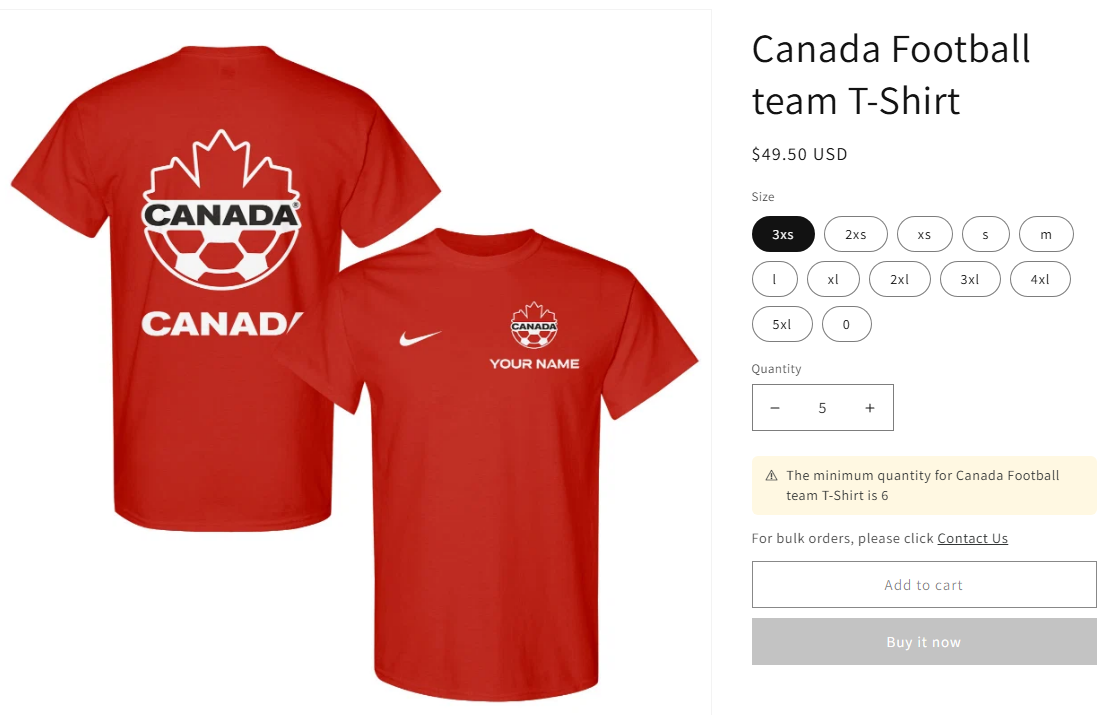
Defaults such as "The minimum quantity for {{product_name}} is {{minimum_quantity}}" adapt to every product without editing.
Per language
If your store publishes several languages, each one gets its own message text via the language tabs.
Full visual control
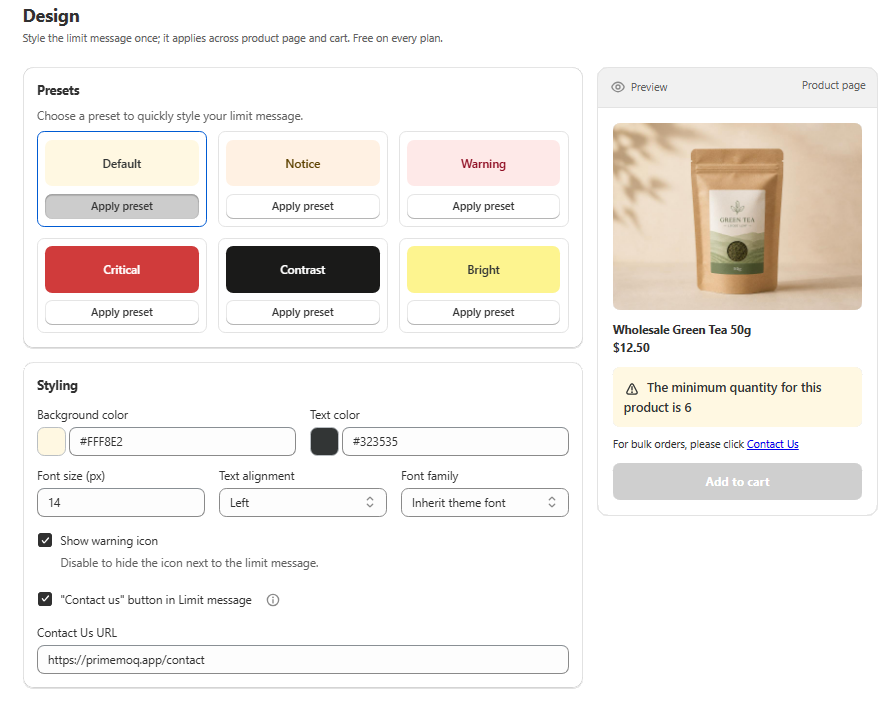
Background colour, text colour, font size from 10 to 24 pixels, alignment, font family and an optional warning icon.
Turn a block into a lead
The optional Contact us link below the message converts a blocked wholesale cart into an enquiry. It is off by default.
How it works
- 1Open the Messages card in the rule editor and pick the language you are editing.
- 2Rewrite the Minimum limit message or Maximum limit message, keeping or dropping the placeholders.
- 3Save the rule, then open the Design page for the storefront styling.
- 4Pick a preset, or set your own background, text colour, size, alignment and font.
- 5Check the live preview for contrast, optionally enable the Contact us link, and save.
Default message templates
Each limit type ships with its own default wording, used whenever you have not written your own.
| Bucket | Minimum message default |
|---|---|
| Quantity | The minimum quantity for {{product_name}} is {{minimum_quantity}} |
| Value | Minimum order value is {{minimum_total_value}} |
| Weight | The minimum total weight is {{minimum_total_weight}} |
Text versus look
A rule's Messages card controls the wording per rule and per language. The Design page controls the appearance for every rule across the whole store, shared by the product page and the cart. Styling only shows up once the app embed is active in your theme.
Common mistakes
- Saving a message field genuinely empty, which falls back to a generic hardcoded message rather than your template.
- Choosing a custom colour and losing the preset pairing, then shipping a low-contrast message.
- Styling the message before enabling the app embed, so nothing appears on the storefront.
Frequently asked questions
- Do I have to use the placeholders?
- No. They are optional and you can write the message entirely in your own voice.
- Can different rules have different styling?
- No. Styling is global by design so every limit message on the store looks consistent. Only the wording is per rule.
Best for
Any store that cares about conversion on blocked carts.
Want a walkthrough of this rule?
We'll set it up live on your catalog in 30 minutes.